Stack Shopify discounts so cart and checkout always agree
How to stack discounts in Shopify comes down to settings the platform hides by default: every discount belongs to a class (product, order, or shipping), and whether two discounts combine is decided per offer, per class. Stackable puts those combine switches on every offer, so a volume tier, a spend goal, and free shipping add up exactly the way you configured them, every time.
Merchants on the Shopify forums ask the same question on repeat:
“Why does my store apply only the highest discount and ignore the rest? I need a volume discount and free shipping to work on the same order, and Shopify support says the platform just picks one discount and drops the other.”
Shopify sorts every discount into a class (product, order, or shipping) and, unless each discount explicitly opts in, refuses to combine them: when two discounts could both apply, checkout keeps one and silently drops the other. Merchants running a volume tier alongside a storewide order discount get inconsistent results with no warning, and the only way to catch it is to place a test order and read the receipt.
How it works
How Stackable solves it
Campaign editor: the three combine switches on the Stacking step of the campaign wizard.
01
Set the combine switches on every offer
Each offer has three switches: combine with product discounts, with order discounts, and with shipping discounts. They map one-to-one to how Shopify decides combinations at checkout, and an allocation control decides which units get a partial reward. Nothing is left to a hidden default.
Cart simulator: a sample cart showing every offer applied and the resulting combined total.
02
Preview the combined math before it's live
Run a sample cart through every active offer and see the exact line-by-line total, the same calculation checkout will run.
Checkout order summary showing the same stacked discount lines the cart displayed.
03
Checkout applies the identical stack
The math runs inside a Shopify Function, so cart, checkout, and Shop Pay compute the same total off one engine, not separate logic to keep in sync.
How stacking actually works
The discount-class combination matrix
Shopify sorts every discount into one of three classes: product, order, or shipping. Whether two discounts combine across classes is decided per offer, and Stackable puts that switch on every offer you create.
The discount-class combination matrix
Combines with →
Product discounts
Order discounts
Shipping discounts
Product discounts
Combines, one product discount per cart line
Configurable per offer
Configurable per offer
Order discounts
Configurable per offer
Never combines
Configurable per offer
Shipping discounts
Configurable per offer
Configurable per offer
Never combines
Configurable means each offer's own combine switch decides whether the two classes add up. Two product discounts can apply to the same cart, but Shopify applies at most one product discount per cart line; two on the same line is a Shopify Plus feature. Two order discounts, or two shipping discounts, never combine.
The complete answer
Stacking is the part of Shopify discounts that is documented in three different places and explained correctly in almost none of them. This is the whole model in one page: the rule, the combinations that are possible, the ones that are not, what breaks, and how to check your own store without installing anything.
What does it mean to stack discounts in Shopify?
Stacking means two or more discounts apply to the same order at the same time, and the customer gets both. Shopify supports it, but only for specific pairs, and only when each discount has explicitly opted in.
Most merchants meet stacking as a complaint rather than a feature. A customer with a 15% volume discount also qualifies for free shipping, the cart page shows both, and the receipt shows one. Nothing errored, nothing was logged, and support says the platform "picks the best discount." That behaviour is correct and documented; it is just invisible until it costs you an order.
Does Shopify combine discounts by default?
No. Every discount is created with combining switched off. When two discounts could both apply and neither has opted in, checkout keeps one and silently drops the other.
This default is the right one, because the alternative is a store that quietly sells below cost the first time two promotions overlap. It just means stacking is never something that happens to you: it is something you turn on, per offer, on purpose.
What is the actual rule for combining Shopify discounts?
Two discounts combine only when they are in different classes and each one is set to combine with the other one class. Two discounts in the same class never add up: Shopify applies the one worth more and drops the other.
Both halves of that sentence matter, and this is the half every other article skips: opting in does not make two product discounts add together. It makes a product discount coexist with an order or shipping discount. Cross-class combining works on every Shopify plan.
There is one exception, and it is narrow. Product discounts are decided per cart line, so one line normally carries one product discount. Two product-class discounts on the same line is a Shopify Plus capability, tag-gated, and it needs a matching tag on both discounts.
What are the three Shopify discount classes?
Product, order, and shipping. A product discount changes item prices, an order discount comes off the subtotal, and a shipping discount reduces delivery. A discount class is not a label: it is what decides what the discount can combine with.
Volume tiers, quantity breaks, BOGO offers and percent-off-a-collection sales are product discounts. Spend goals, "$20 off orders over $150" and most storewide codes are order discounts. Free shipping thresholds are shipping discounts. If you can name the class of each of your live discounts, you can predict every stack in your store.
Why do two percentage discounts never add up?
Because they are almost always both product-class discounts, and two discounts in the same class do not stack. A 20% clearance price and a 10% storewide sale on the same shirt give 20% off, not 28% and not 30%.
Merchants often read this as a bug in their app or a caching problem on the cart page. It is neither. Shopify compares the two, keeps the one that is better for the customer, and discards the other with no error and no line in the order. The only fix is to model what you actually want as a single offer, or to move one of the two into a different class.
Which discount combinations can actually stack?
Any pair drawn from two different classes can stack, once both sides opt in. Any pair inside one class cannot. The table below is that rule written the way merchants ask it.
Which discount combinations can actually stack?
I want these to stack
Classes involved
What to set
A volume tier and free shipping
Product plus shipping
On the tier, combine with shipping discounts. On the shipping offer, combine with product discounts.
A spend goal and free shipping
Order plus shipping
On the spend goal, combine with shipping discounts. On the shipping offer, combine with order discounts.
A volume tier and a spend goal
Product plus order
On the tier, combine with order discounts. On the spend goal, combine with product discounts.
A BOGO offer and free shipping
Product plus shipping
On the BOGO offer, combine with shipping discounts. On the shipping offer, combine with product discounts.
A storewide code and an automatic tier
Order plus product
On the code, combine with product discounts. On the tier, combine with order discounts.
A clearance price and a storewide percentage on the same item
Product plus product
Not possible outside Shopify Plus. Leave both switches off and model the intended price as one offer.
How do I turn stacking on for one offer?
Each offer carries three switches: combine with product discounts, with order discounts, and with shipping discounts. They map one to one onto what Shopify stores on the discount, so what the editor shows is exactly what checkout will do.
The switches are per offer and they are not symmetrical by magic. Turning "combine with shipping discounts" on for your volume tier says the tier is willing; the shipping offer still has to say it too. Both sides have to opt in, which is the single most common reason a stack that looks configured does not fire.
Campaign editor: the three combine switches on the Stacking step of the campaign wizard.
Can an automatic discount stack with a discount code?
Yes. Automatic and code are delivery methods, not classes, so the same class rule decides. An automatic product discount and an order-class code combine when both opt in.
Two limits are worth knowing before you build a campaign on this. Checkout accepts at most five product or order codes plus one shipping code on a single order. And a code in the same class as your automatic discount still does not add to it, whatever the code says on the landing page.
What happens when two offers in the same class both qualify?
Shopify keeps the one worth more to the customer and drops the other. There is no warning, no error, and no record of the discount that lost.
This is the behaviour that makes stacking bugs so expensive to find: the store looks healthy, the orders look normal, and the only evidence is a receipt that is missing a line somebody expected. If a promotion has ever "not worked for some customers," this is the first thing to check.
What does a stacked order actually look like?
Six combinations cover almost everything merchants run. Each one below names the classes involved, the switches to set, and the total a real cart ends up paying.
Example 1
15% off three or more items, plus free shipping over $150
Setup
A product-class volume tier scoped to the collection, with combine with shipping discounts on. A shipping-class free shipping offer at a $150 threshold, with combine with product discounts on.
Result
A $180.00 cart pays $153.00: $27.00 off the products and $9.00 of shipping waived, on one order.
Example 2
A spend goal that also unlocks free delivery
Setup
An order-class spend goal with two thresholds, $5 off at $50.00 and $15 off at $100.00, with combine with shipping discounts on. The shipping offer opts in to order discounts.
Result
An $88.00 cart takes the $5 tier and shows how far it is from the $15 one, and free shipping applies on top rather than replacing it.
Example 3
BOGO alongside a free shipping threshold
Setup
A product-class buy one get one offer with repeat logic on, combining with shipping discounts. The shipping offer combines with product discounts.
Result
The cheapest eligible shirt drops from $32.00 to $0.00 for a $156.00 subtotal, and the same order still ships free.
Example 4
A clearance sale and a storewide order code
Setup
Clearance stays a product discount and opts in to order discounts. The storewide code is an order discount and opts in to product discounts.
Result
Both lines appear on the checkout order summary and the customer pays the combined total, which is the receipt every stacked order should produce.
Example 5
Two product discounts that must not combine
Setup
Leave both offers on the default. Neither opts in, so they stay in the same class with no bridge between them.
Result
Checkout applies exactly one of the two, never both, and the tier editor is where you model the price you actually intended.
Example 6
A Black Friday stack that has to switch itself on and off
Setup
Both offers carry a start and end time in the shop timezone and their combine switches set. The pair is scheduled, not published by hand at midnight.
Result
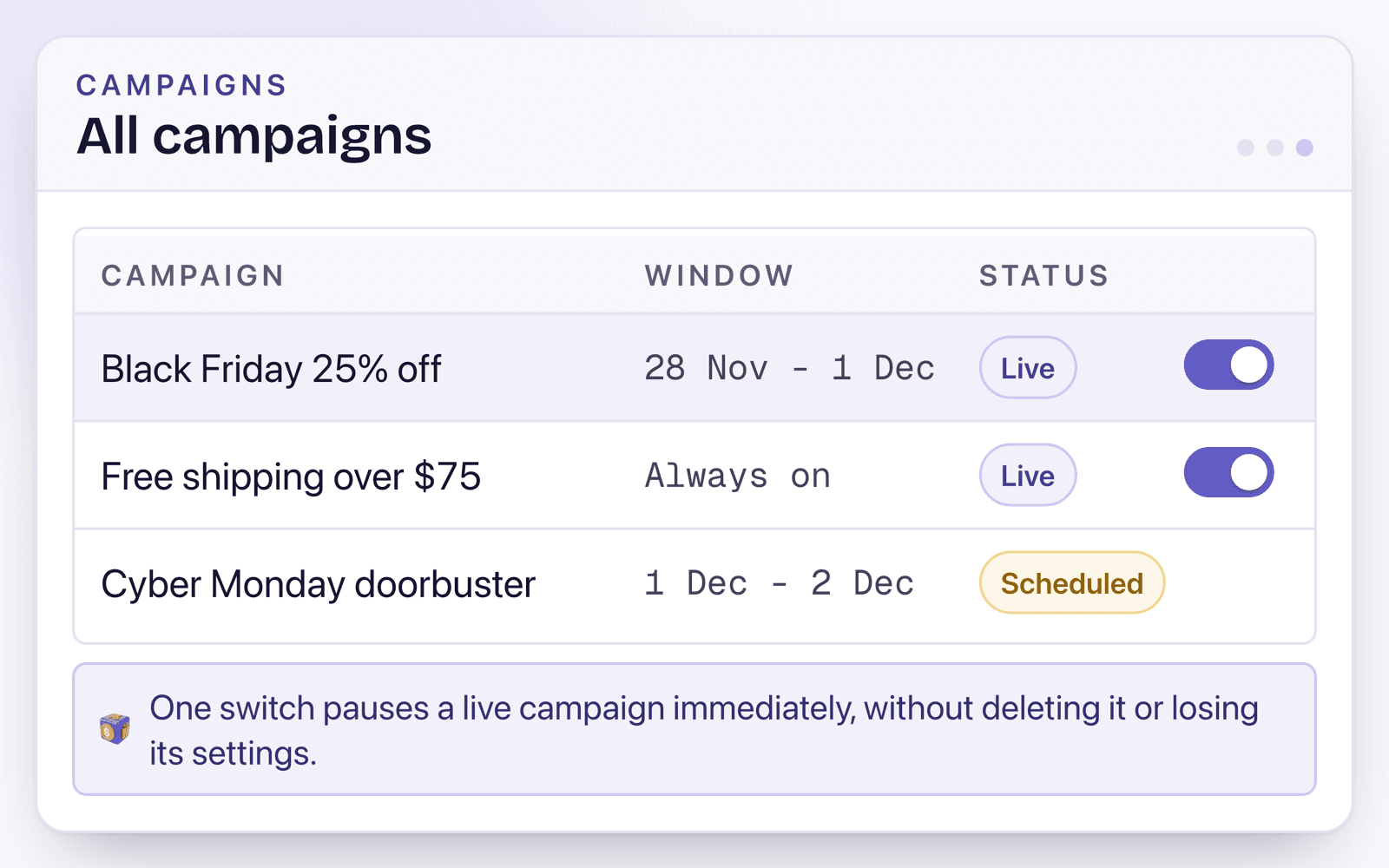
The stack turns on and off on schedule, one switch pauses it mid-sale without losing the settings, and each scheduled window counts against the 25 active automatic discounts a shop can hold.
Why does my cart page show one total and checkout another?
Because the two numbers were computed by different things. A cart total painted by theme JavaScript is a display; the checkout total is what Shopify calculated server-side, and it is the one that gets charged.
Any discount implemented as a cart-page script has this problem by construction. It can show a customer $92.00 and hand them a $110.00 checkout, and the customer reads that as a bait and switch. A discount that runs as a Shopify Function is priced once, on Shopify servers, so every surface reads the same number because there is only one number.
Checkout order summary showing the same stacked discount lines the cart displayed.
Do stacked discounts survive Shop Pay, Apple Pay, and Google Pay?
They do when the discount runs server-side. They do not when it depends on the cart page, because accelerated checkouts jump from the product page straight to payment and the theme code never runs at all.
This is the most under-tested failure mode in Shopify discounting, because the merchant testing it almost always clicks the normal checkout button. If a stack matters to your margin, place one test order through an express wallet before the campaign goes live.
How many discounts can I run at the same time?
A shop can have at most 25 active function-based automatic discounts. Shopify raised that ceiling from 5 in November 2024.
The count is about overlapping active windows, not about how many rows exist. A campaign scheduled for next month reserves its window as soon as it is created, so it consumes a slot for the period it covers. A store that keeps every seasonal campaign scheduled a year ahead can hit the ceiling without having a single discount live today.
How do I check which of my own discounts can combine today?
Shopify shows it per discount, one at a time, in the Combinations section of the discount editor. Reading five of them takes about five minutes and tells you every stack your store can currently produce.
1In Shopify admin, open Discounts and pick any discount that is live.
2Scroll to the Combinations section of the discount editor.
3Read the three checkboxes: product discounts, order discounts, shipping discounts. Anything unchecked can never stack with this discount, no matter what the other discount says.
4Open the second discount in the pair and read the same three checkboxes. Both sides have to opt in; one is never enough.
5Put both discounts in one test cart, complete the order, and read the receipt. The order summary lists every discount that actually applied, which is the only source of truth.
6Repeat the test through Shop Pay or Apple Pay. That is the surface where a cart-page discount disappears.
How do I test a stack before customers see it?
Run the cart you are worried about through a simulator before the campaign is live, and read the line-by-line result. The useful test is not that the discount fires, but that it fires on the right cart and stays off the wrong one.
Test both directions. A cart that should qualify and a cart that should just miss the threshold catch different bugs, and the second one is the one that quietly costs money. Then place one real order through an accelerated wallet, because that is the surface the cart page cannot speak for.
Cart simulator: a sample cart showing every offer applied and the resulting combined total.
Recipes
Use it like this
Scenario
A skincare brand wants "3+ items get 15% off" to also unlock free shipping, without customers needing a separate code.
Setup
Create a volume-tier offer scoped to the skincare collection and switch on "Combine with shipping discounts." Create a free-shipping offer with the same 3-item threshold and switch on "Combine with product discounts."
Result
A 3-item cart shows 15% off product totals plus free shipping at checkout, matching exactly what the cart page already displayed.
Scenario
An always-on "buy 2, save 10%" volume tier should let a BFCM spend goal ($20 off orders over $150) add on top for big carts.
Setup
On the volume offer, switch on "Combine with order discounts." On the spend-goal offer, switch on "Combine with product discounts."
Result
A qualifying cart gets both discounts totalled on one order; smaller carts still get the automatic 10%, and neither offer breaks the other.
Scenario
A clearance sale (40% off) and a storewide order discount (15% off) must never combine, since running both would sell some products below cost.
Setup
Leave the combine switches off on both offers. Off is the default: every offer runs on its own unless you explicitly opt it in.
Result
Checkout applies exactly one of the two, never both stacked, and the simulator confirms the behavior on a sample cart before the campaign goes live.
FAQ
Common questions
Does Shopify support discount stacking natively?
Only within limits, and the controls are buried. Shopify can combine discounts across classes (product, order, shipping) when each discount opts in, but only one product discount applies per cart line (two on the same line is a Shopify Plus feature). Stackable puts the three combine switches on every offer, so you see and control exactly what checkout will do.
Will stacked discounts work with Shop Pay, Apple Pay, and Google Pay?
Yes. Every calculation runs inside a Shopify Function at checkout, so accelerated checkouts compute the identical stacked total as the regular checkout page.
Can I stop offers from combining?
Yes, that's the default. Every combine switch starts off, so an offer never adds on top of another discount class unless you opt it in. The simulator confirms the behavior on a sample cart before the campaign goes live.
How do I know what will actually stack on a real cart?
Run the cart simulator before going live: it shows which offers fired, which didn't, and why, with the exact combined total checkout will charge. Per-order reporting of which offers applied is on the roadmap.